Device authentication (802.1x)
Note that this feature may have to be enabled in the System settings.
With 802.1x authentication, devices identify themselves to the network before they are granted access. ZEM supports two ways for a device to do so, both handled by a RADIUS server running in your own network:
- Certificates (EAP-TLS): ZEM issues a unique certificate per device, signed by a Certificate Authority (CA) that ZEM generates and manages for your site.
- Credentials: a username and password per device, which ZEM stores in the database of your RADIUS server(s).
Both mechanisms can be used side by side, and both are managed from the device dashboard once 802.1x has been set up.

Prerequisites
Besides the feature toggle, an On-Site Appliance with the "802.1x authentication (RADIUS)" module must be running in your network. This module installs a RADIUS server and its database alongside the appliance. Only one appliance per site can host the RADIUS module.
Once both are in place, an "802.1x" tab becomes available on the settings screen.
Configuring the switches themselves is done on the switches, not in ZEM. They need the RADIUS shared secret and the CA certificate, both of which this page explains how to obtain.
Setting up 802.1x
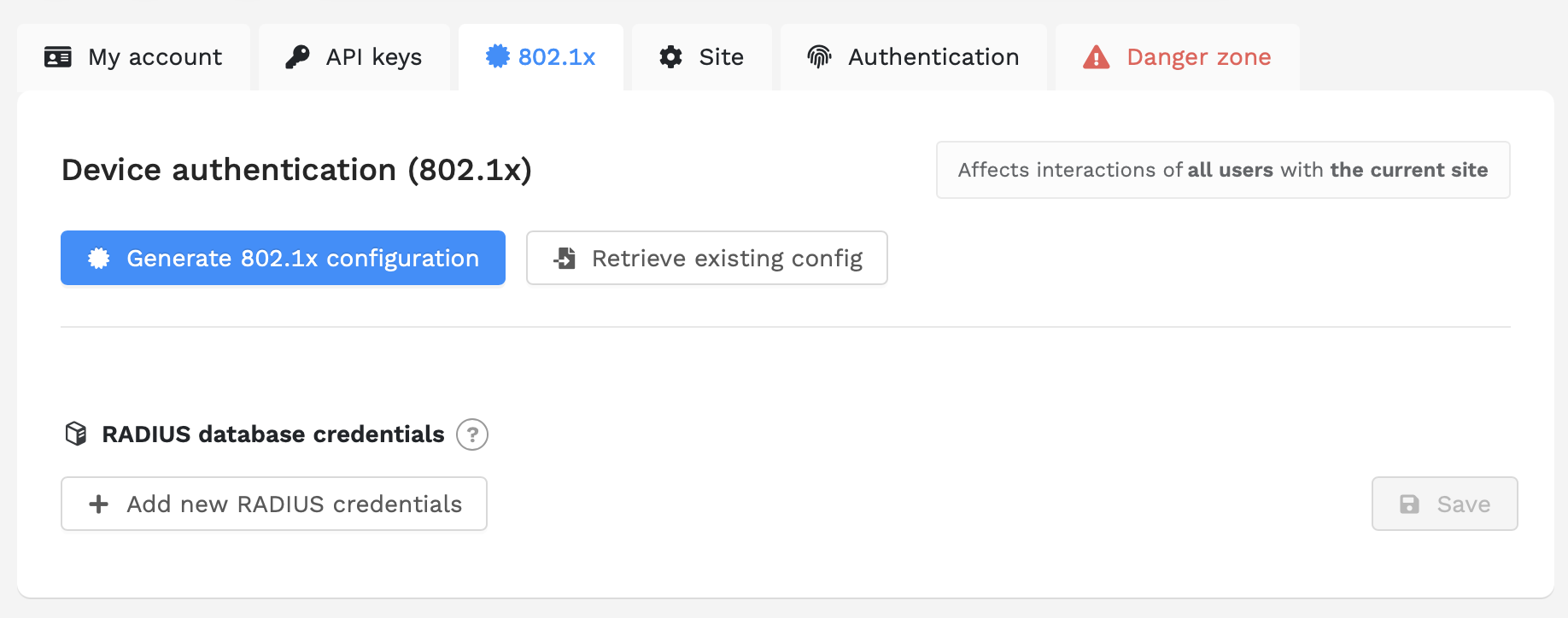
Open the settings screen and select the "802.1x" tab. As long as no configuration exists yet, two options are shown.
Generate 802.1x configuration
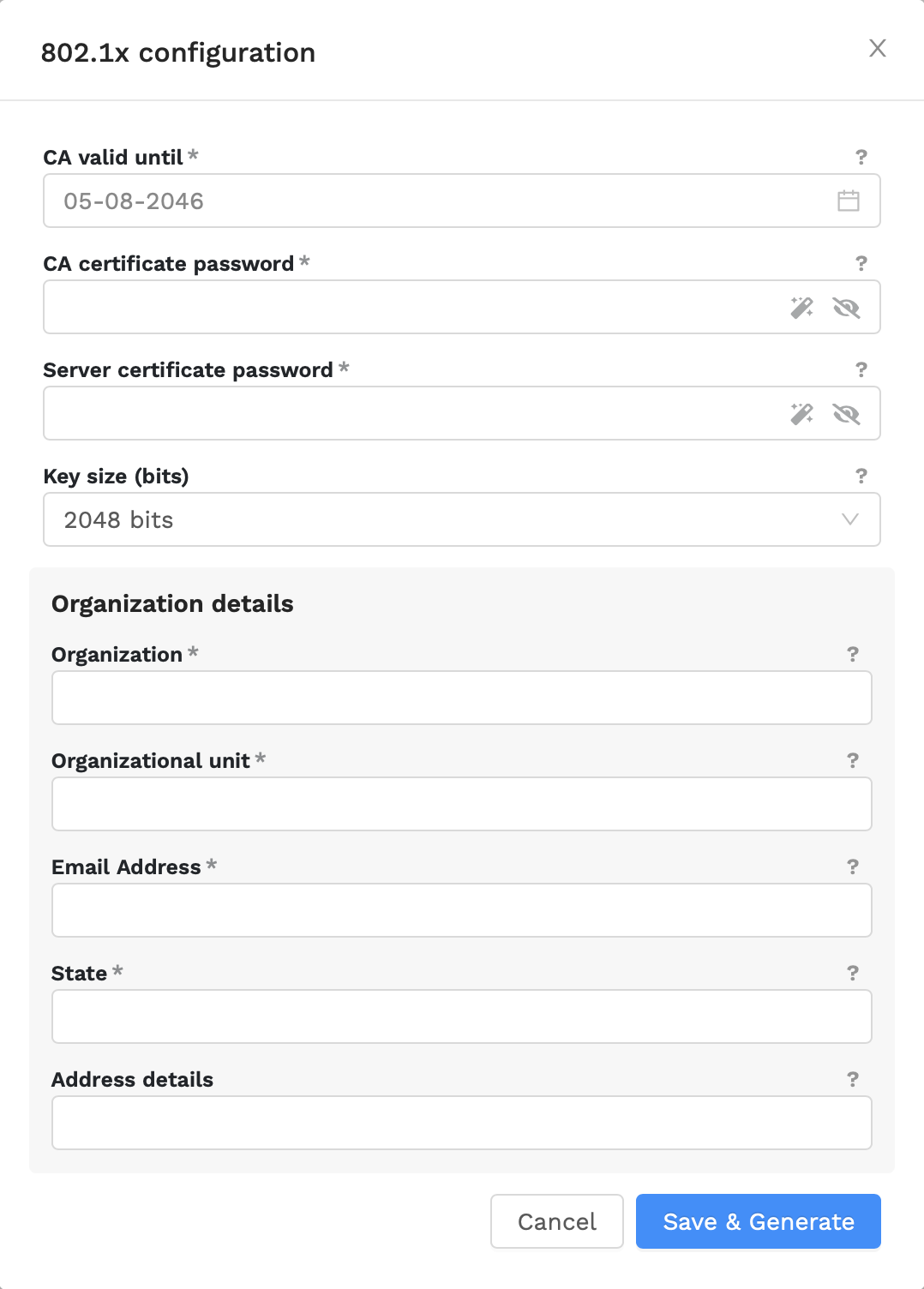
This creates a new Certificate Authority and server certificate on the RADIUS server, and configures the RADIUS server to use them. Fill in the form and click "Save & Generate".
CA valid until
The expiry date of the CA and the server certificate. This must be at least two years from today, so the CA outlives the device certificates it issues. When the CA expires, all certificates it issued stop being accepted, so it is generally advisable to pick a date well beyond the validity of your device certificates.
CA certificate password
The password protecting the CA's private key. This password is used whenever a new device certificate is signed.
Server certificate password
The password protecting the private key of the RADIUS server certificate.
Key size (bits)
The RSA key size used for the generated keys, either 2048 or 4096 bits. Larger keys are more secure, but slower to generate and to use.
Organization details
The organization name, e-mail address, state and (optionally) organizational unit and address details that are embedded in the CA and server certificates. These are shown to anyone inspecting a certificate issued by ZEM.
Generating the configuration takes a few moments, as the RADIUS database, the server configuration, and the certificates are all set up in one go. When it completes, the configuration becomes active and device certificates can be issued.
Retrieve existing config
If a RADIUS server with a CA has already been set up in your network - for example because the configuration was created earlier or the site was rebuilt - use "Retrieve existing config" to import it into ZEM instead of generating a new one. If nothing is found, a "No existing configuration found." message is shown and you can generate a new configuration instead.
Incomplete configurations
If generation fails part-way (for example because the RADIUS server could not be reached), the configuration is kept in an incomplete state and a warning is shown. Three options are then available:
- "Retry" - run the generation again with the values that were entered previously.
- "Edit configuration" - correct the values first, then generate again.
- "Delete & start over" - discard the generated material and the passwords. Organization details are kept, so the configuration reappears as an incomplete one that can be edited or retried. Since nothing was activated, no certificates are lost.
The active configuration
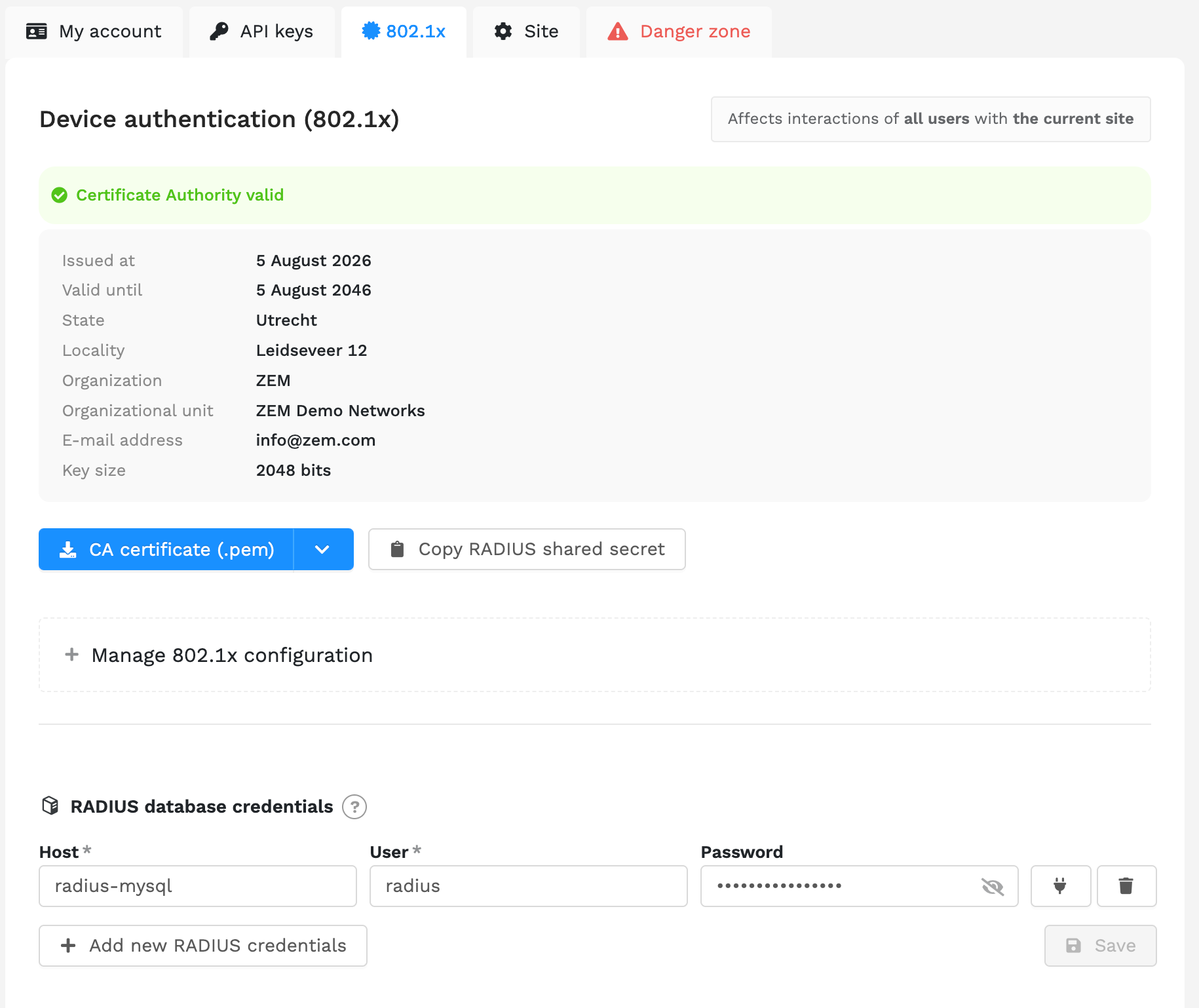
Once a configuration is active, the 802.1x tab shows its details: when it was issued, until when it is valid, the organization details it was created with, and the key size. The banner at the top turns orange when the configuration expires within 30 days, and red once it has expired.
Download
The download button offers the "CA certificate (.pem)". This is the certificate your clients and network equipment need in order to trust the certificates ZEM issues.
The CA private key, the server certificate, and the server private key are also offered here, but only to ZEM product engineers, as these files can be used to issue certificates outside of ZEM.
Copy RADIUS shared secret
Copies the shared secret to the clipboard. Your switches and other RADIUS clients need this secret to communicate with the RADIUS server.
Manage 802.1x configuration
The "Manage 802.1x configuration" panel contains the RADIUS server settings and the actions that affect the configuration as a whole.
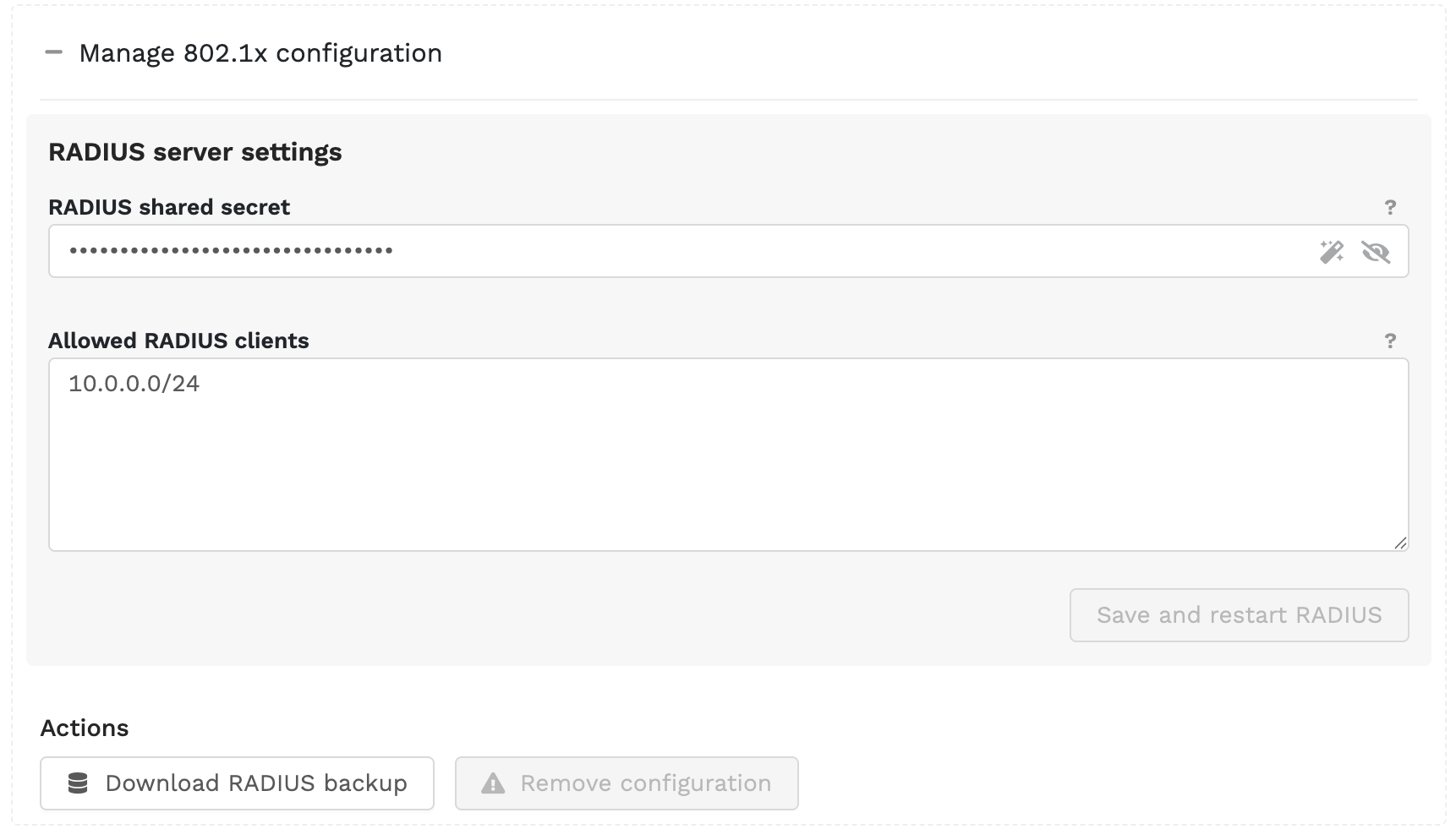
RADIUS server settings
RADIUS shared secret
The shared secret used to authenticate and secure communication between the RADIUS clients (your network infrastructure) and the RADIUS server. This must match the secret configured on your switches. Use the wand button to generate a new one, and the eye button to reveal it.
Allowed RADIUS clients
The subnets that are allowed to authenticate against the RADIUS server, one per line, as an IP address or a
CIDR range. This replaces the default setup, which only allows 10.0.0.0/24.
Click "Save and restart RADIUS" to push the settings to the RADIUS server. The settings are only stored in ZEM once the server has accepted them, so a failed push never leaves ZEM describing a configuration the server does not have.
Download RADIUS backup
Downloads an archive containing the certificates and the appliance configuration of the RADIUS setup. Keep this backup somewhere safe: once a CA has been removed, this archive is the only way to access and restore it.
Remove configuration
Deletes the CA, the server certificate, and the RADIUS server configuration, and removes every device certificate issued by that CA.
Warning
Devices using those certificates lose network access immediately, and this cannot be undone.
Because of that, the button is only enabled when a backup has been downloaded in the last 15 minutes. The timestamp of the most recent backup is shown below the buttons.
The allowed RADIUS clients are kept when a configuration is removed, so they do not have to be entered again when a new configuration is generated afterwards.
RADIUS database credentials
The lower part of the 802.1x tab holds the login details of the RADIUS server database(s). ZEM uses these to store the usernames and passwords entered on the device dashboard, so that devices can authenticate with credentials instead of (or alongside) a certificate.
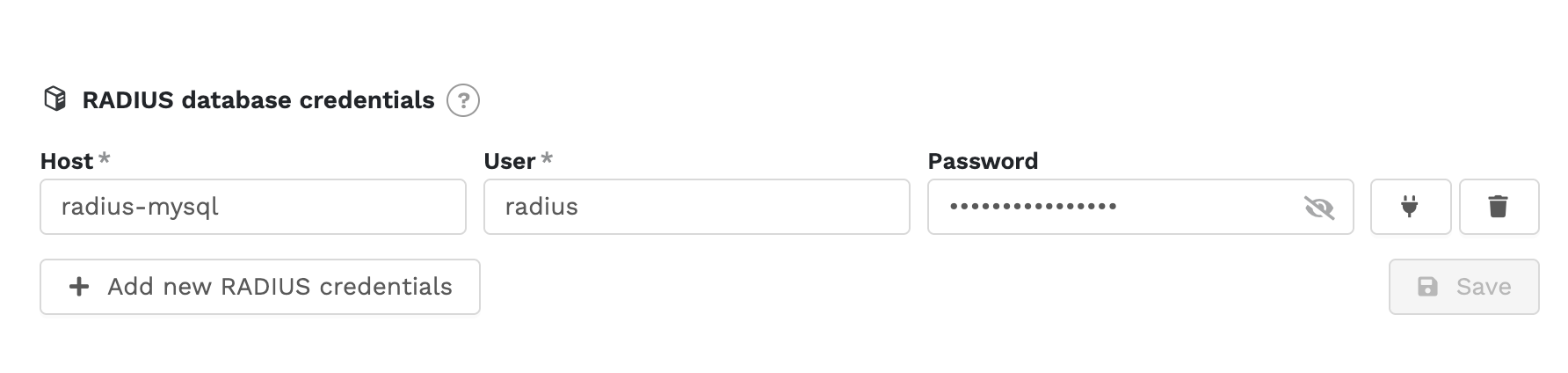
Each row consists of a "Host", "User" and "Password". Use the plug button to test whether the RADIUS database is reachable with the entered details; the indicator next to it turns green on success and shows the error message on failure. Use "Add new RADIUS credentials" to add another server, the bin button to remove one, and "Save" to store your changes.
When you generate or retrieve an 802.1x configuration, ZEM fills in the credentials of the RADIUS database it just configured automatically, so in most cases this section does not need to be filled in by hand.
Device profile settings
Once an 802.1x configuration is active, device profiles gain an "802.1x Authentication" section that determines how certificates are issued for the devices using that profile.
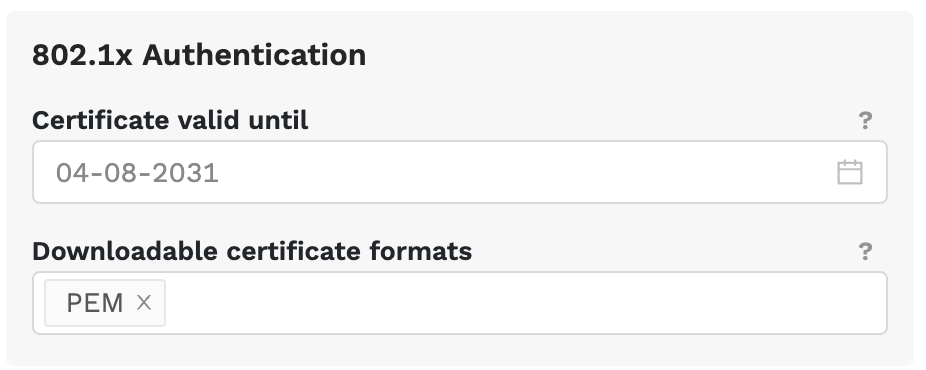
Certificate valid until
The default expiry date of newly issued certificates for devices with this profile. The default is five years. Note that a device certificate can never outlive the CA that signed it.
Downloadable certificate formats
Which formats may be downloaded from the device dashboard:
| Format | Contents |
|---|---|
| PEM | The public device certificate |
| Bundle (PEM + Key) | The public certificate and the private key in a single PEM file |
| KEY | The private key in PEM format |
| KEYP | The private key, protected with a password |
| PFX | Certificate and private key bundled in PKCS#12 format |
| PFX (Legacy) | PKCS#12 using older encryption, for equipment that cannot read modern PFX |
The most recently added format is used as the default download on the device dashboard. If no formats are selected, a warning is shown on the device and nothing can be downloaded.
Certificates on a device
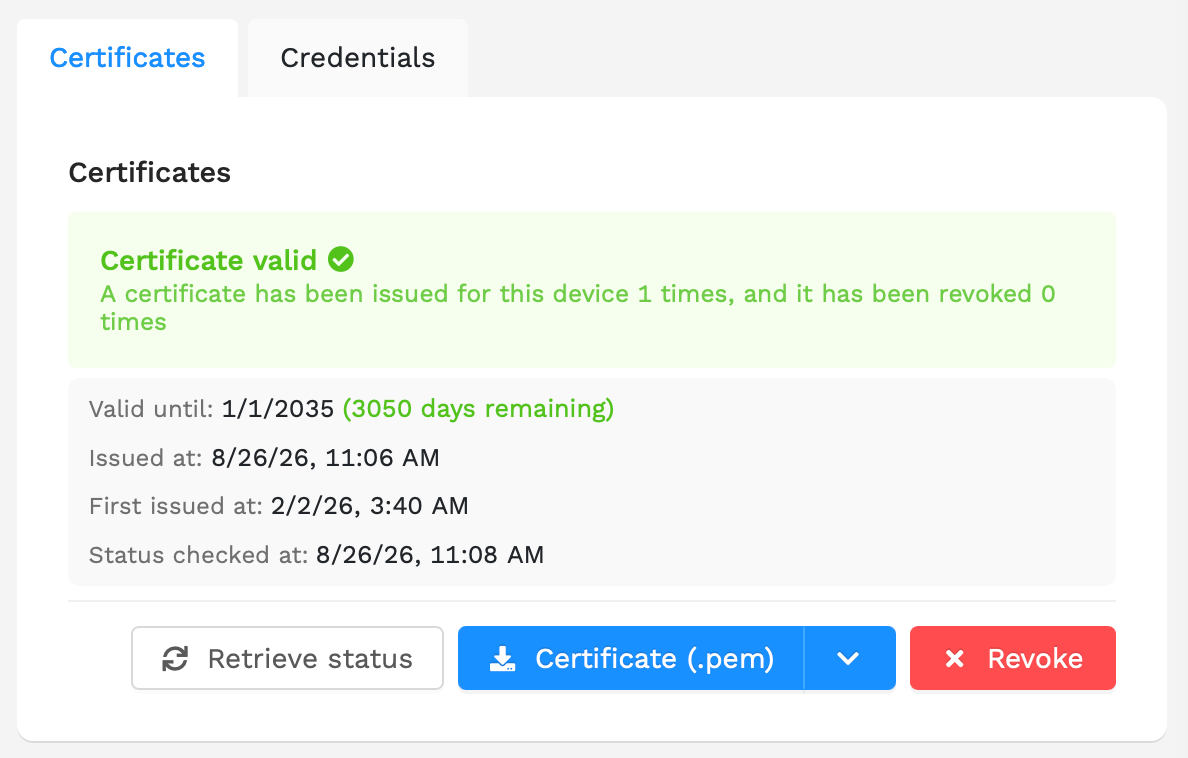
The device dashboard shows a "Certificates" card. When credentials are configured as well, the card has a "Certificates" and a "Credentials" tab.
Issuing a certificate
For a device without a certificate, the following options are available:
- "Issue new" - asks the RADIUS server for a freshly signed certificate for this device.
- "Retrieve existing" - fetches a certificate that was issued for this device earlier, without issuing a new one. Useful when ZEM has lost its local copy, for example after the device was re-created.
- "Revoke" - only useful when the RADIUS server still holds a certificate for this device that ZEM no longer has a copy of. It revokes that certificate on the server.
Certificate status
The card shows the status recorded the last time the certificate was checked against the RADIUS server, which may be some time ago - the card only checks by itself when a certificate has never been checked. Use "Retrieve status" to check it again.
| Status | Meaning |
|---|---|
| Certificate valid | The certificate exists on the server, is not revoked and was issued by the current CA |
| Expiring soon | The certificate is close to expiry and the server no longer reports it as valid |
| Certificate expired | The certificate is past its expiry date and is no longer accepted |
| Certificate revoked | The certificate was revoked by the CA |
| Certificate not found | The certificate no longer exists on the server; issue a new one |
| Issued by different CA | The certificate was signed by an older CA, for example after the configuration was replaced. Issue a new certificate to replace it |
| Connection issue | The RADIUS server could not be reached, so the status could not be checked |
Below the status, the card lists when the certificate expires (and how many days remain), when it was issued, when it was last revoked, when a certificate was first issued for this device, and when its status was last checked. The number of days remaining turns orange within 30 days of expiry and red within 7 days.
Renewing a certificate
There is no separate renew or reissue action. To replace a certificate - because it is expiring, has expired, or was issued by a CA that has since been replaced - revoke the current one first, then use "Issue new" on the resulting empty card.
Warning
The device cannot authenticate between the revoke and the new certificate being installed on it, so plan this for a moment when a short interruption is acceptable.
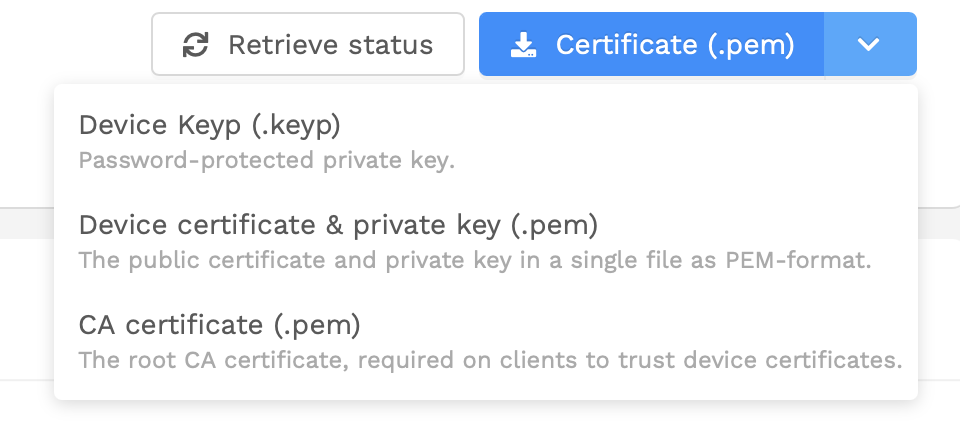
Downloading a certificate
The download button offers the formats enabled on the device profile, plus the "CA certificate". Formats
that contain the private key can only be downloaded by users with the issue_device_certificates privilege;
other users only see the public certificate and the CA certificate.
Key password
When the PFX, PFX (Legacy) or KEYP format is enabled, a "Key password" button copies the password protecting those files to the clipboard. This password is generated per certificate; issuing a new certificate produces a new password.
Locked devices
On a locked device, "Revoke" is disabled. Downloading a certificate, retrieving the status and copying the key password still work.
Revoking a certificate
"Revoke" withdraws the certificate on the RADIUS server. Devices using it can no longer authenticate until a new certificate is issued. ZEM only drops its local copy once the server confirms the revocation, so if the server refuses, the certificate is kept and an error is shown.
Credentials on a device
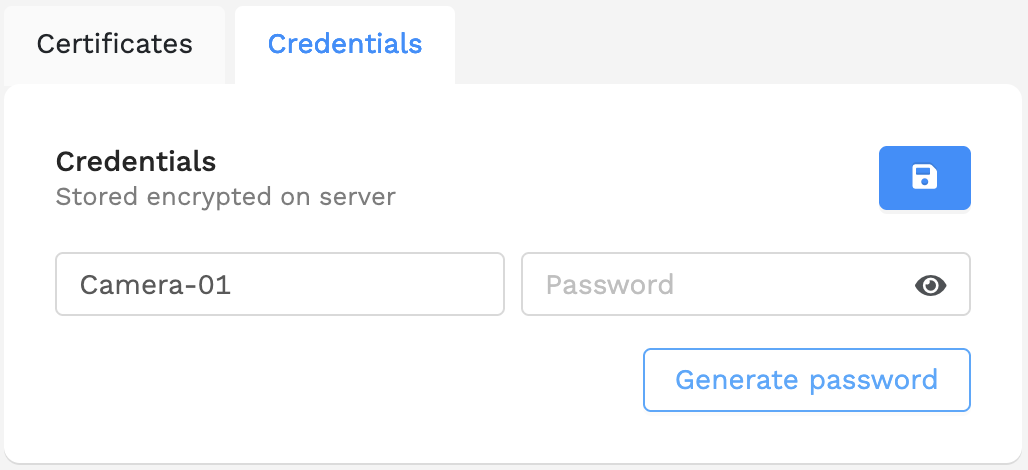
The "Credentials" tab holds a username and password for the device, stored encrypted in ZEM and pushed to the RADIUS database(s) configured under RADIUS database credentials.
For a device that has no credentials yet, the tab opens ready to fill in, with the username pre-filled with the device's hostname. Use "Generate password" for a random password, then click save. To change credentials later, click the pencil button first to enter edit mode; "Undo" discards your changes and the bin button removes the credentials again.